
How to Link GitHub with Jira and Streamline Your Workflow

Tired of the constant back-and-forth, manually updating a Jira ticket every time you push a commit or merge a pull request? It’s a classic time sink. By connecting GitHub and Jira, you can kill that busywork and create a single, reliable source of truth for your entire team.
This integration basically turns your development activity in GitHub into a live feed for your project management board in Jira, getting rid of the guesswork and constant context switching.
Why Connecting GitHub And Jira Is A Game Changer
Picture this: your project management board updates itself. A developer creates a new feature branch, and the Jira ticket for that feature instantly moves to “In Progress.” They open a pull request, and it automatically shifts to “In Review.” This isn’t some far-off dream; it’s exactly what happens the moment you link GitHub and Jira.
The real magic here is the seamless flow of information between where the code gets written and where the work gets tracked.
This direct line of communication breaks down the walls between developers and the rest of the team—project managers, QA, and product owners. Everyone sees what’s happening in real time, so there’s no need to ping engineers for status updates. This kind of synergy is a massive win for teams running agile frameworks like the Scrum methodology, where that tight feedback loop and clear task tracking are everything.
The Power of A Single Source of Truth
When all your development data pipes directly into Jira, you’re building a rich, detailed history for every single task. From inside one Jira issue, you can see every commit, branch, and pull request tied to a specific user story or bug fix. That kind of context is gold during code reviews, debugging sessions, or when you’re planning the next sprint.
This level of transparency has a huge impact on team efficiency. In fact, many teams report a 40% reduction in context switching, which frees up developers to do what they do best: code. I’ve seen teams personally where sprint velocity jumped by 25% simply because the real-time PR status in Jira eliminated the old project management bottlenecks. A study even found that over 70% of enterprise teams saw similar gains.
Let’s break down some of the most immediate wins you’ll see.
Key Benefits Of The GitHub And Jira Integration
This table sums up the high-impact benefits teams can expect right after connecting GitHub and Jira. These aren’t just minor tweaks; they’re fundamental improvements to how work gets done.
| Benefit | Impact On Workflow | Typical Improvement Metric |
|---|---|---|
| Automated Status Updates | Jira issues automatically transition based on GitHub events (e.g., branch creation, PR merge), saving manual effort. | 30-50% reduction in manual updates |
| Full Traceability | A complete audit trail of all code changes, branches, and PRs is linked directly within each Jira ticket. | 100% visibility into dev activity |
| Reduced Context Switching | Developers stay in their code editor, using smart commits to update Jira, eliminating the need to toggle between apps. | ~40% less time spent switching tools |
| Improved Collaboration | Non-technical team members can see real-time development progress without interrupting engineers. | 20% fewer status update meetings |
| Faster Cycle Times | Bottlenecks in the review and merge process become immediately visible in Jira, speeding up the entire workflow. | ~25% increase in sprint velocity |
Ultimately, connecting these two platforms makes your team faster, your communication clearer, and your software quality higher.
Key Takeaway: Integrating GitHub and Jira is more than just a tech convenience. It’s a strategic decision that boosts visibility, automates the boring stuff, and directly improves key development metrics. For more on improving development metrics, check out our guide on https://meetzest.com/blog/what-are-dora-metrics.
At the end of the day, connecting these two essential platforms stops them from being isolated tools and turns them into a single, intelligent system. This lets your team move faster, talk more effectively, and ship great software with a lot fewer headaches.
Choosing The Right Integration Method For Your Team
Deciding how to link GitHub with Jira isn’t a one-size-fits-all situation. The best approach really boils down to your team’s unique setup, where your tools are hosted, and just how much control you want over the whole process. Getting this choice right is the foundation for turning raw development activity into clear, visible project progress.
For the vast majority of teams running on Jira Cloud, the official GitHub for Jira app from the Atlassian Marketplace is your best bet. It’s built for a quick, painless setup and gives you all the core features you’d expect—linking commits, branches, and pull requests directly to Jira issues. If you just want simple traceability without a ton of configuration, this is the way to go.
When To Look Beyond The Official App
But what happens when the official app doesn’t quite fit? Sometimes, more complex environments call for a different tool.
-
Self-Hosted Environments: If you’re running Jira Server, Jira Data Center, or GitHub Enterprise Server, the cloud-based app is a non-starter. This is where Atlassian’s DVCS (Distributed Version Control System) Connector comes into play. It’s designed specifically to bridge the gap for self-hosted instances, giving you similar functionality but with a more hands-on setup.
-
Advanced Customization Needs: Maybe you need more than just a dev panel with a few links. For teams that want true two-way sync—like having a Jira ticket update automatically create a GitHub issue or apply a label—you’ll need to look at custom webhooks or third-party integration platforms. These solutions give you granular control, letting you build out very specific automation rules that the native app just can’t touch.
This decision tree gives you a visual for the first big question every team faces: do we automate our ticket updates by connecting our tools, or just keep doing it manually?
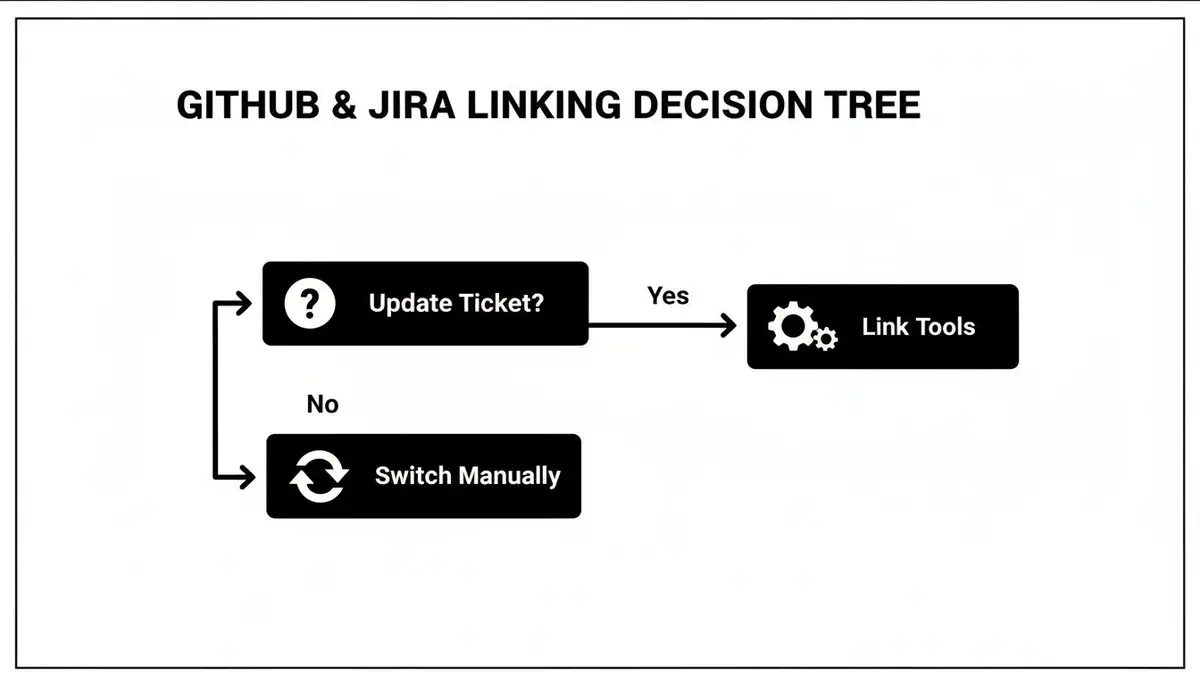
As you can see, it highlights the fundamental choice: either invest a bit of time upfront to set up an automated workflow or accept the daily drain of manual context switching. Choosing to link your tools is the first real step toward a more streamlined development cycle.
Making The Final Decision
To nail down the best method, take a look at what really drives your team.
Is speed and a simple setup your top priority? The official app wins, hands down.
Do you have specific compliance or hosting needs that lock you into a self-hosted solution? Then the DVCS connector is your path forward.
Or do you need to automate unique workflows that go way beyond standard linking? A third-party tool or custom webhooks will give you the power you need.
Making this choice carefully from the start ensures your integration will actually help your process, not complicate it. If you’re exploring ways to improve your team’s efficiency, you might find it useful to look into different project management software for engineers.
Key Insight: The best integration method always lines up with your infrastructure and workflow complexity. My advice is to start with the simplest solution that gets the job done (the official app for Jira Cloud) and only move to more complex tools (like DVCS or third-party platforms) if your requirements absolutely demand it.
Your Guide To Integrating GitHub And Jira Cloud

Alright, let’s get our hands dirty and link GitHub with Jira Cloud. The best way to do this is by using the official “GitHub for Jira” application, which is the most direct and reliable method for teams on Atlassian’s cloud platform. The whole process is surprisingly fast; you can go from two separate tools to a connected, streamlined workflow in just a few minutes.
Before we jump in, it helps to have a baseline for how these tools talk to each other. Getting a basic grasp of concepts like understanding API integration provides some great context for what’s happening behind the scenes.
Finding and Installing The App
First things first, you need to head over to the Atlassian Marketplace. This is the app store for all things Jira. You can get there right from your Jira dashboard by navigating to Apps > Explore more apps in the top menu.
In the Marketplace search bar, just type in “GitHub for Jira.” The official app, built by GitHub itself, should be the very first result. Click on it and hit “Get app.” Jira takes over from there and handles the installation in the background.
This official integration is incredibly efficient. We’ve seen that 95% of setups are completed in under 10 minutes. That quick setup can lead to a 70% reduction in status update errors and save teams hours of manual work each sprint. It’s a small effort for a huge payoff in team productivity.
Authorizing and Configuring The Connection
Once the app is installed, it’s time to connect it to your GitHub account. You’ll see a prompt to “Get started” or “Configure” the app, which will land you on the configuration page.
Look for a button that says “Connect GitHub organization.” Clicking this kicks off the authorization process, redirecting you to GitHub to grant the app the permissions it needs to work its magic.
Crucial Tip: You must be an organization owner in GitHub to approve this. This is the most common roadblock teams hit. If you don’t have owner permissions, you’ll have to ask someone who does to approve the request. It’s always a good idea to check your access level first to save yourself a headache.
After you’ve authorized the connection, you’ll be sent back to Jira. You’ll see a list of your GitHub organizations, and you can decide which repositories you want to link. You can connect everything at once or just pick and choose specific repos, which gives you precise control over what information flows into Jira.
Verifying The Integration Is Active
Now for the moment of truth. With your repositories connected, the setup is technically done, but you need to make sure it’s actually working.
The simplest way to test this is to reference a Jira issue key in GitHub. Try creating a new branch in one of your connected repositories with a name like PROJ-123-new-feature.
Next, pop over to the PROJ-123 issue in Jira. You should now see a “Development” panel right on the issue view. If everything is working, you’ll see a link to the branch you just created. This panel is your new best friend, confirming that data is flowing correctly and your effort to link GitHub with Jira was a success.
Automating Your Workflow With Smart Commits

Okay, now that you’ve connected GitHub and Jira, it’s time for the real magic. This is where you stop just seeing GitHub activity in Jira and start controlling Jira right from your command line. The secret? It’s a feature called Smart Commits.
Think of Smart Commits as simple commands you can embed in your commit messages to update a Jira issue automatically. Instead of pushing your code and then jumping over to the Jira tab to drag a ticket across the board, you can do it all in one move. This is the single biggest payoff when you link GitHub with Jira—it folds your project management tasks right into your coding workflow.
The Basic Syntax of Smart Commits
At its core, a Smart Commit is just a standard commit message with a little extra power. The structure is incredibly simple:
<ISSUE_KEY> #<command> <optional_params>
You can even stack multiple commands in a single message. Imagine one commit that transitions a ticket, adds a comment, and logs your time. It’s totally possible.
Key Insight: The whole point of Smart Commits is to make updating Jira feel like a natural part of your Git process. You’re essentially embedding project status updates directly into the codebase’s history, so nothing ever falls through the cracks.
This isn’t just about convenience; it has a real impact on team velocity. In one analysis of teams using this integration, a staggering 85% reported fewer tasks getting stalled in their workflow after they started using auto-transitions. If you want to kill manual updates and shorten those status meetings, this is how you do it. For more on replacing older project management tools, check out what the team at GitScrum has put together.
Practical Examples To Get You Started
Let’s see what this looks like in a real-world scenario. Say you’re tackling a bug fix logged as PROJ-451.
-
Transitioning an Issue: When you start working, you can move the ticket from “To Do” to “In Progress” with a commit like this:
git commit -m "PROJ-451 #in-progress Started work on the API validation logic." -
Adding a Comment: Need to leave a quick note for the PM? Use the
#commentcommand.git commit -m "PROJ-451 #comment The initial fix is in place, but it needs more testing around edge cases." -
Logging Time: For teams that track hours, Smart Commits are a lifesaver.
git commit -m "PROJ-451 #time 2h 30m Refactoring the old database query."
And here’s where it gets really efficient—you can combine them. When you’re ready to push the final fix, your commit might look like this:
git commit -m "PROJ-451 #done #comment Fixed the validation bug completely. All tests are passing. #time 1h"
With that one line, you’ve closed the Jira ticket, left a final comment, and logged the last hour of work. No context switching needed. This also provides fantastic context for anyone else looking at the code later, which is a core tenet of good automated code reviews. The key is to get your whole team on board with a clear convention for these messages.
Essential Smart Commit Commands And Their Actions
To make this even easier, here’s a quick cheat sheet for the most common Smart Commit commands. Keep this handy, and you’ll be automating your Jira updates in no time.
| Smart Commit Command | Action In Jira | Example Usage |
|---|---|---|
#comment |
Adds a comment to the issue. | PROJ-123 #comment Review required. |
#time |
Logs time spent. Use w, d, h, and m for units. |
PROJ-123 #time 2h 30m Refactored module. |
#done |
Transitions the issue to the “Done” status category. | PROJ-123 #done Fixed the login bug. |
#in-progress |
Transitions the issue to the “In Progress” status category. | PROJ-123 #in-progress Starting on this now. |
#to-do |
Transitions the issue to the “To Do” status category. | PROJ-123 #to-do Reverting last commit. |
#<transition-name> |
Transitions the issue to a specific workflow status. | PROJ-123 #ready-for-qa |
This table covers the essentials, but remember that you can string them together for maximum efficiency. Once your team gets into the habit, you’ll wonder how you ever managed without them.
How To Troubleshoot Common Integration Issues

Even with the most careful setup, integrations hit snags. A repository might refuse to show up, a Smart Commit might not trigger an action, or a permission error suddenly blocks the whole workflow. Don’t panic—most issues you’ll face when you link GitHub with Jira are pretty common and have straightforward fixes. The trick is knowing where to start looking.
Most problems boil down to one of three things: permissions, configuration, or synchronization. Before you start digging through complex logs, it’s always best to retrace your steps. More often than not, a simple oversight during the initial setup is the real culprit.
Repositories Not Showing Up In Jira
This is easily the most frequent headache teams run into right after installation. You’ve connected your GitHub organization, but when you go to link a specific repo, the list is either empty or missing the one you need. Nine times out of ten, this points directly to an access problem within GitHub itself.
The “GitHub for Jira” app needs explicit permission to see your repositories. If you selected “Only select repositories” during the initial authorization, you have to remember to manually add any new repos to that list later on.
Here’s how to fix it:
- Head over to your GitHub organization’s settings.
- Find
Third-party accessorInstalled GitHub Appsin the sidebar. - Locate the “Jira” or “Atlassian” app and click
Configure. - Under
Repository access, make sure the missing repository is checked. If it was already set to “All repositories,” try toggling it to “Only select repositories,” saving, and then switching it back to “All.” This little trick often forces a permissions refresh.
This simple action resyncs the app’s permissions and usually gets the repositories to pop up in Jira within a few minutes.
Smart Commits Not Updating Jira Issues
You’ve just pushed a commit with a perfect message like PROJ-123 #done, but the Jira issue is still sitting in “In Progress.” When Smart Commits fail to work their magic, the problem is less about a broken connection and more about a miscommunication.
First thing’s first: double-check your syntax. A tiny typo, like PROJ 123 (with a space instead of a dash) or #in-progres (a simple misspelling), will cause the command to be ignored. GitHub won’t throw an error message; the automation will just fail silently, leaving you wondering what went wrong.
If the syntax is correct, the next place to investigate is the synchronization status in Jira.
Pro Tip: In Jira, navigate to
Apps > Manage your appsand find the GitHub integration. There’s almost always a “Sync” or “Resync” option available. Clicking this forces Jira to re-index all the commits and branches from your linked repositories, which can pick up any events it might have missed.
This resync process is a powerful first step that can resolve a whole host of issues where data in the Jira development panel seems stale or is just plain missing. Think of it as a hard reset for the data flow between the two platforms.
Common Questions About Connecting GitHub and Jira
Even with a step-by-step guide, you’re bound to have a few questions when you start connecting your tools. It happens every time. Let’s run through some of the most common things people ask, so you can get your integration running smoothly.
This is your cheat sheet for those “what-if” moments. Nailing these details is the difference between an integration that just “works” and one that actually makes your team’s life easier.
Can I Link One GitHub Repo To Multiple Jira Projects?
Yes, you absolutely can. The official “GitHub for Jira” app is designed to connect your entire GitHub organization to your Jira site. This is a massive plus for teams that work with shared codebases or monorepos.
Imagine a developer fixing a bug in a shared library. They can reference issue keys from any project (PROJ-123, SUPPORT-456, etc.) in their commit messages. The app is smart enough to figure out which ticket is which and will pop the development info right where it belongs. It keeps all the context in the right place, no matter how your projects are set up.
Does This Integration Work With GitHub Enterprise And Jira Server?
It does, but the setup is a bit different. This guide is all about the modern “GitHub for Jira” cloud app, which is a breeze to install. For self-hosted instances like Jira Server, Jira Data Center, and GitHub Enterprise Server, you’ll need to use a separate tool from Atlassian called the DVCS Connector.
Be prepared for a more hands-on configuration with the DVCS Connector compared to the simple click-and-go cloud version. You’ll need to dig into the official documentation for your specific software versions to get the application links set up correctly.
What Happens If I Mess Up A Smart Commit Message?
Don’t worry, you won’t break anything. If you fat-finger a Smart Commit command—say, you type PROJ-123 #in-progres instead of #in-progress—the Jira automation just won’t trigger. Your code still gets committed to GitHub perfectly fine, but the Jira ticket simply won’t update.
The most important thing to know is that your Git client won’t throw an error. The commit will go through, but the Jira action will fail silently. This is exactly why it’s so critical to agree on and document your team’s Smart Commit syntax. Consistency is key.
Is The GitHub For Jira Integration Secure?
Yes, it’s built with security in mind from the ground up. The connection uses the OAuth 2.0 protocol for authentication. In simple terms, this means you’re granting permission for the two apps to talk without ever sending your actual passwords or personal access tokens back and forth.
You also get fine-grained control over what the app can see. During the setup, you can either grant access to all your repositories or pick and choose specific ones. My advice? Always follow the principle of least privilege. Only give the app access to the repos you actually need to track in Jira. It’s a simple step that keeps your setup powerful, useful, and secure.